

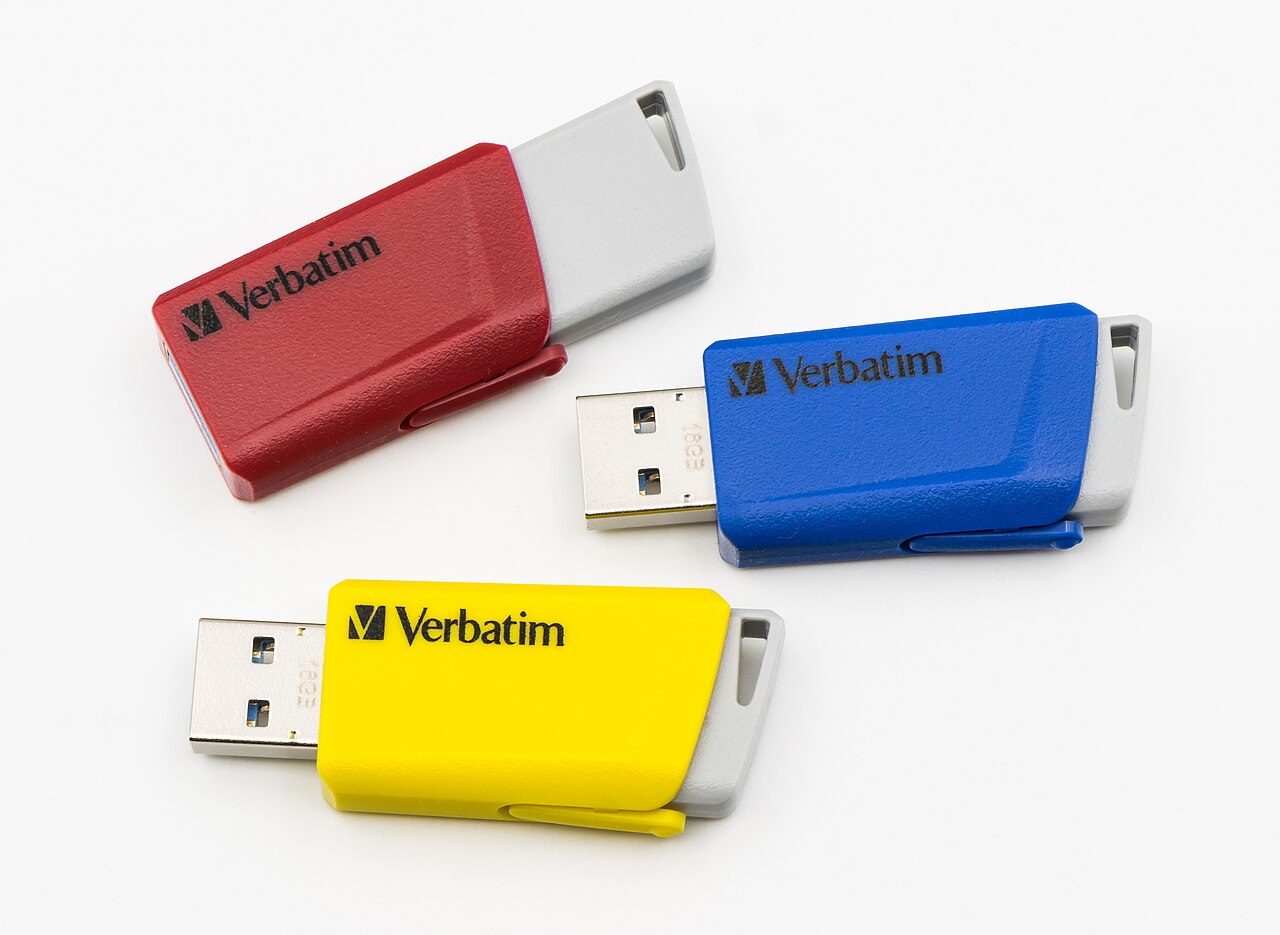
Formatting a USB drive or memory card should be simple, but Windows often limits FAT32 formatting to smaller drives. guiformat is a small, free Windows utility designed to solve that problem. It lets users format larger drives to FAT32 quickly, without complicated settings.
What Is GUIFormat?
GUIFormat, also known as FAT32 Format, is a lightweight formatting tool for Windows. It focuses on one job: formatting drives to the FAT32 file system. Unlike the built-in Windows formatter, which often refuses to format drives larger than 32 GB as FAT32, GUIFormat can handle larger USB drives, SD cards, and external drives.
The tool is portable in spirit and simple in design. It opens in a small window, shows the available drives, and lets the user choose the drive, file system options, and volume label before starting.
Why FAT32 Still Matters
Many devices still work best with FAT32. Older game consoles, car stereos, cameras, media players, and some embedded devices read FAT32 reliably, while they may not support newer file systems. FAT32 is also widely compatible across Windows, macOS, and Linux for basic file sharing.
That compatibility makes FAT32 a practical choice for removable storage that will be used on different devices. When a drive needs to work everywhere, FAT32 is often the safest format, even if it has limits such as a 4 GB maximum file size.
Key Features for Everyday Users
- Large drive support: Format drives larger than 32 GB to FAT32, which Windows built-in tools often block.
- Simple interface: A clear window with drive selection, allocation unit size, and volume label options.
- Quick formatting: A fast process for most USB drives and memory cards.
- Portable and lightweight: A small utility that does not need a heavy installation.
- Removable drive focus: Designed for USB drives, SD cards, and external storage.
How to Use It Safely
- Back up any important files first, because formatting erases everything on the drive.
- Connect the USB drive or memory card and open GUIFormat.
- Select the correct drive carefully, and double-check the drive letter and size.
- Choose FAT32, set a volume label if wanted, and start the format.
- Wait for the process to finish, then safely eject the drive before removing it.
Choosing the wrong drive is the most common mistake in formatting. Always confirm the drive letter and capacity before clicking start, especially when several drives are connected.
Practical Tips
Use FAT32 when compatibility matters most, and another file system when large single files over 4 GB are needed. For drives used only on modern Windows PCs, other formats may be better, but for shared or older devices, FAT32 remains useful.
After formatting, test the drive on the target device before copying a large collection of files. A quick test can confirm the device reads the drive correctly and saves time later.
Final Thoughts
GUIFormat does one thing well: it makes FAT32 formatting simple, even for large drives. For users who need a drive that works across many devices, it removes a common Windows limitation without adding complexity.
To learn more about this formatting tool, visit guiformat.com.